

How to Use an AI Image Describer: Real Outputs From All Seven Modes
Need alt text, captions or the words out of a photo? We tested all seven modes of Vormly's describer on real images. Here's what each one gets right, what it gets wrong, and which one to use.
LPLeo PanFounder, VormlyA batch of product photos goes live tomorrow, and every one still needs alt text, the short description a screen reader reads out loud. A few photos in, the descriptions start sounding the same.
AI can write that first draft for you in seconds. What it can't do is decide which kind of description the job needs, or which lines to double-check before they go live. So we ran all seven modes of the Vormly AI image describer on real images and kept every answer, mistakes included.
TL;DR
Writing alt text or a caption? Start with Describe Briefly. Need every detail written down? Use Describe in Detail. Need the words printed in an image? Use Extract Text. Need one fact? Use Ask a Question. Whichever you pick, read the answer once before you publish. The describer is good at saying what's in a picture, and less reliable when it guesses, when it counts lots of similar things, or when it lists one object as two.
What an image describer does for you
Picture a folder of images that all need words: a caption for each post, a description for each product, the text from a pile of scanned receipts. Writing it all by hand is slow, and it gets sloppy by the end.
This kind of tool does that writing for you. You upload a picture, an AI that can read images looks at it, and it answers in plain text. Depending on what you ask for, you get a short description, a long one, a list of what's in the picture, the words printed in it, or an answer to a question.
People use it for jobs like these:
- Alt text and captions. People who use screen readers hear a short description instead of seeing the image. The web's accessibility rules, in WCAG Success Criterion 1.1.1 (opens in a new tab), ask for one on every image that matters to the page.
- Keeping big image collections searchable. A product library or photo archive is much easier to search when every picture has a description.
- Copying text out of images. Signs, screenshots, posters and scans turn into text you can paste, instead of typing it all again.
- Quick questions. Ask something specific, like what a label says, and get a straight answer.
How we tested
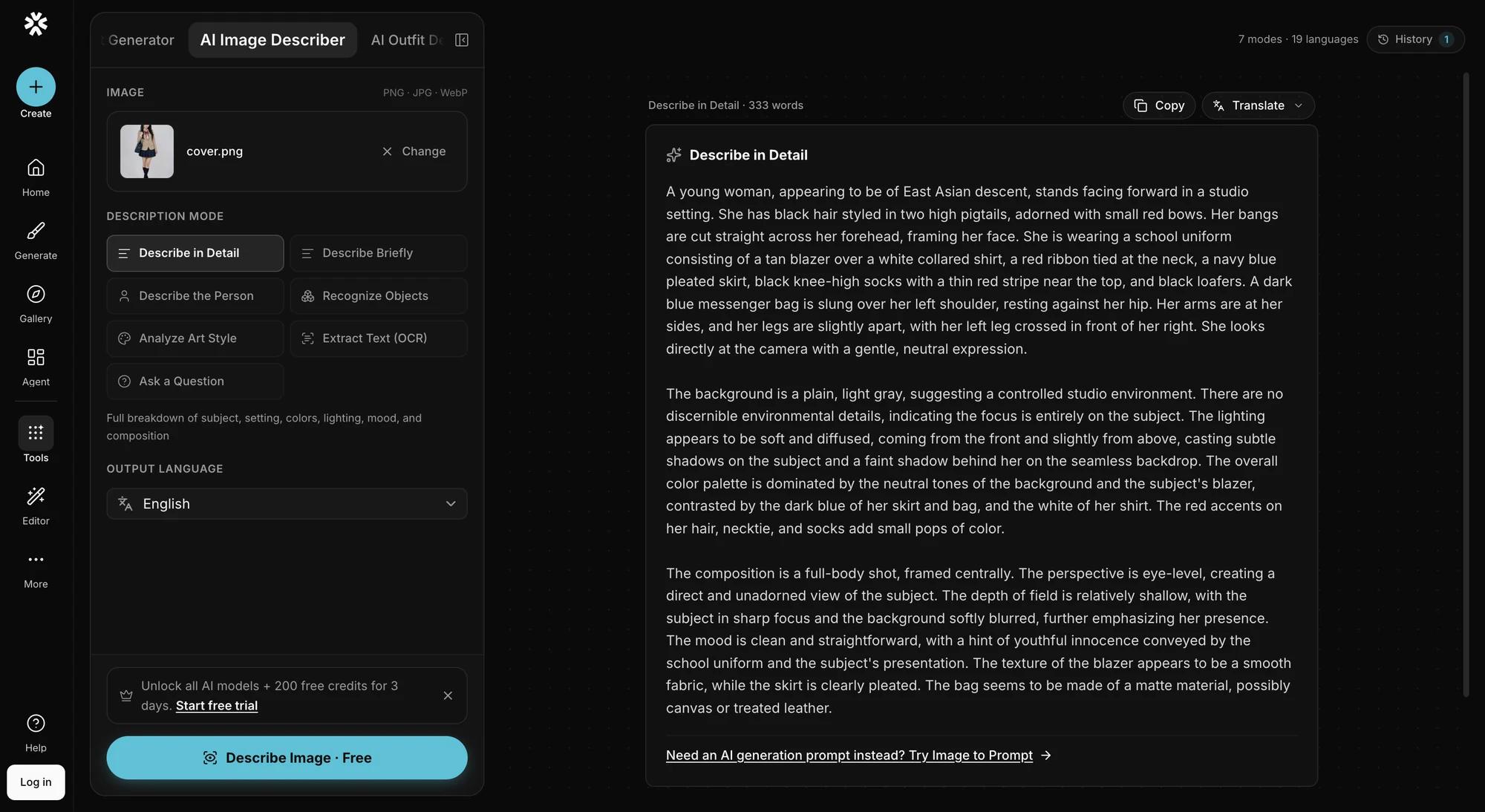
This is the describer: upload an image on the left, pick one of the seven modes and the language you want, and the answer appears on the right. It takes PNG, JPG and WebP files up to 10 MB, it's free, and you don't need an account.
For each mode, we picked an image from the Vormly gallery that suits that mode's job and ran it on September 15, 2026. Before the AI looks at an image, it's resized so the longest side is 1,024 pixels, exactly as it would be for you. The AI words things a little differently each time, so treat the mistakes below as the kinds of things to watch for, not an exact list.
The model that reads the image
Behind every mode is Google's Gemini 2.5 Flash-Lite (opens in a new tab), an AI model that can take in text, images, video, audio and PDFs and answer in text. Google built it to be fast and cheap for simple jobs done at large scale, like sorting things into groups or pulling out basic information. We use the stable version released on July 22, 2025, and Google's Gemini deprecation schedule (opens in a new tab) doesn't list a date for switching it off.
That explains two things you'll see below. The seven modes aren't seven different AIs: each one sends your image to the same model with different instructions. And the model is at its best with plain facts, like which objects are there, what text is written, or how many of something there are when there are only a few. It's weaker when it starts guessing, like the time of day in a photo or which art movement a painting leans toward.
Which mode to use for which job
| What you need | Mode | What you get | Check before you use it |
|---|---|---|---|
| A full written record for a catalogue or archive | Describe in Detail | 150 to 300 words on what's there, the setting, the light and the mood | Sentences where it guesses instead of describing |
| Alt text for a photo | Describe Briefly | One or two sentences, never more than 40 words | Trim it to what your page needs |
| Notes on a portrait | Describe the Person | Looks, clothes and pose, but never who the person is | The age is only an estimate |
| A list of everything in a product shot or scene | Recognize Objects | One item per line, in groups | One item listed as two |
| A name for a visual style | Analyze Art Style | The style, medium, colors and artists it brings to mind | Claims about how it was made, and answers that contradict themselves |
| The words inside an image | Extract Text | The text copied exactly, with a note on where each piece sits | The notes about where text sits, and shapes listed with no text |
| One specific fact | Ask a Question | An answer based only on what it can see | Counts of lots of similar things |
Describe in Detail: thorough, but check its guesses
Say you're building a catalogue or an archive and need a proper written record of each image, not just a caption. That's what this mode is for.

Output · Describe in Detail309 words · first two of three paragraphs
It noticed nearly everything that's really there: the open book, the stack of old books with a key beside it, the box and the inkwell with a quill, the window, the dust floating in the light, and a low camera angle, as if you were sitting at the desk.
The mistakes are in the sentences where it guesses, and they sound just as sure as the rest:
- It can't decide about the book. It says the open book suggests it "is currently being read or has just been closed." A book lying open hasn't just been closed.
- It guesses the time. It calls the scene "likely late morning or early afternoon," judging from the light. Nothing in the picture tells you the time.
My verdict
Use Describe in Detail as a first draft for catalogues and research. Keep the facts about what's in the picture, and check or delete any sentence about what the scene means or when it happened.
Describe Briefly: the starting point for alt text
This is the mode for that batch of product photos, or any image that needs a caption or alt text.
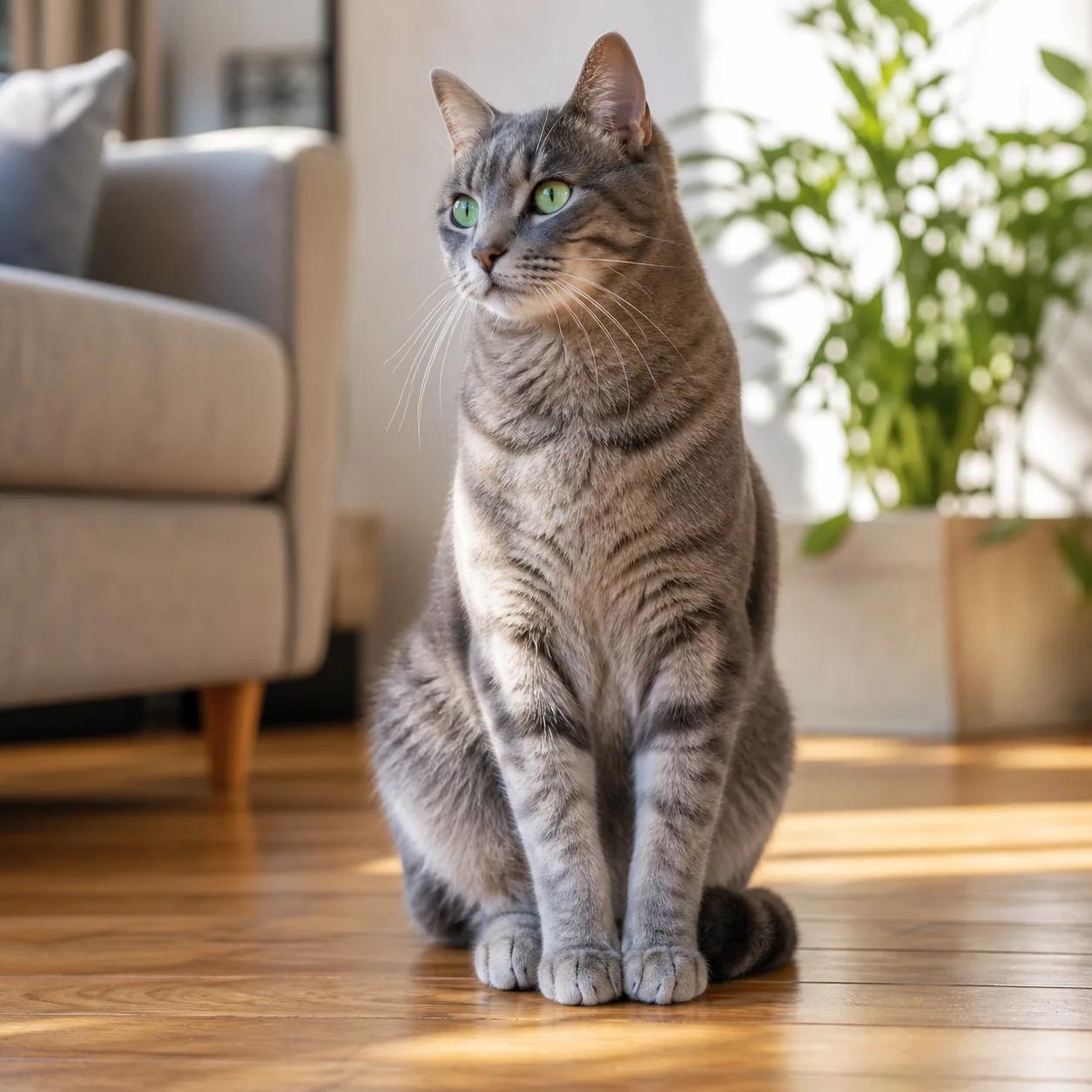
Output · Describe Briefly25 words
It's capped at 40 words, and here it used 25: what the photo shows, the one detail you'd notice first (the green eyes), where the cat is, and what's behind it. Every word of it is accurate.
Treat it as a draft anyway. If your page is about the cat, you can drop the sofa and the plant. And if the photo already has a caption that says the same thing, the alt text can be left empty. The alt text section near the end explains when.
Describe the Person: what someone looks like, never who they are
This one helps when portraits or team photos need descriptions, for a website or a photo library.
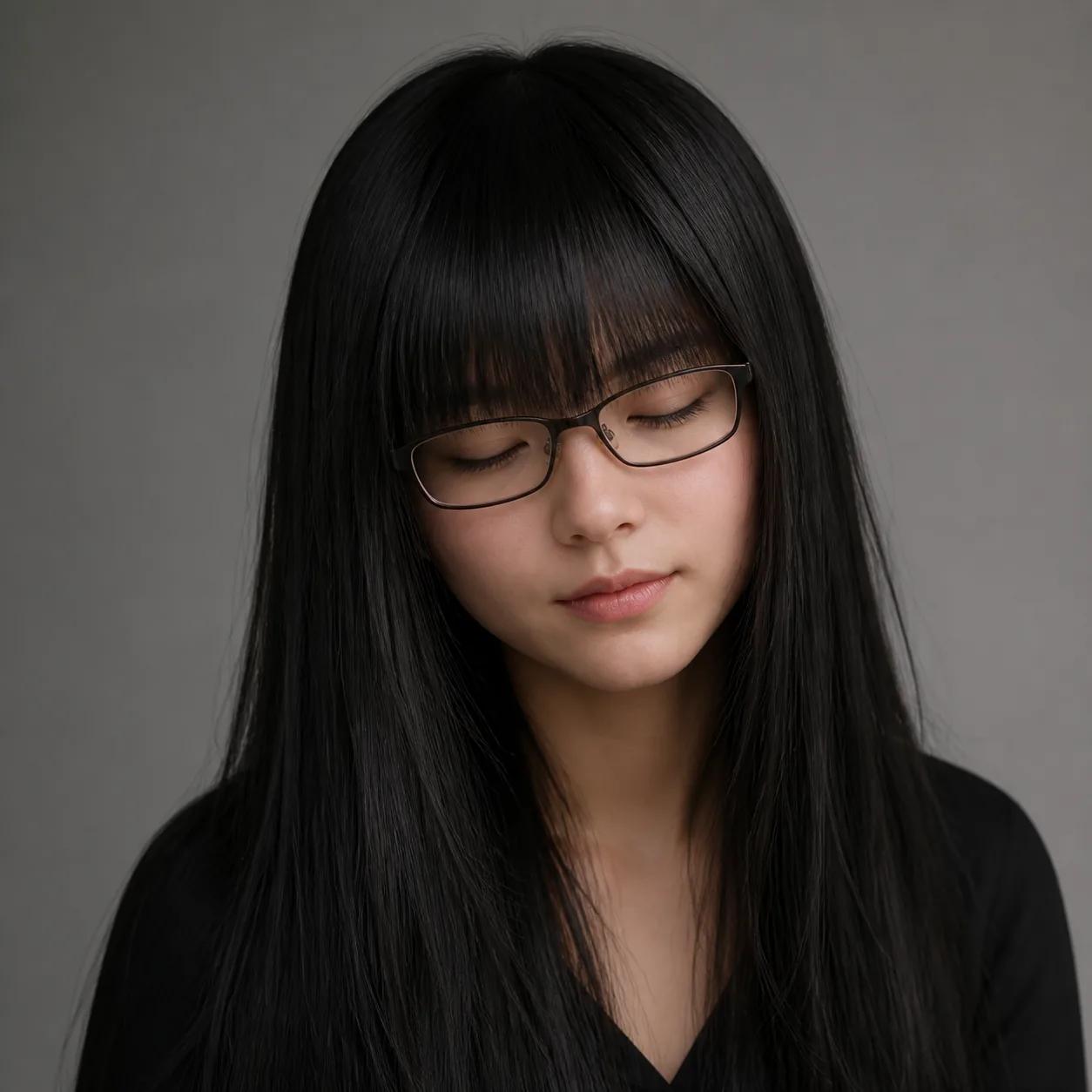
Output · Describe the Person121 words
It stuck to what you can see: hair, glasses, expression, the tilt of the head, clothes and how the photo is framed, and it got all of it right. It's built never to say who a person is, even if they look like someone famous. If there's no one in the picture, it says so and describes what is there.
The one thing to handle carefully is the age: "likely in her late teens or early twenties." That's a guess, and not something to publish about a real person.
Recognize Objects: a tidy list, with one item counted twice
Say you sell clothes online and want a list of everything in each product shot. This mode gives you that list.
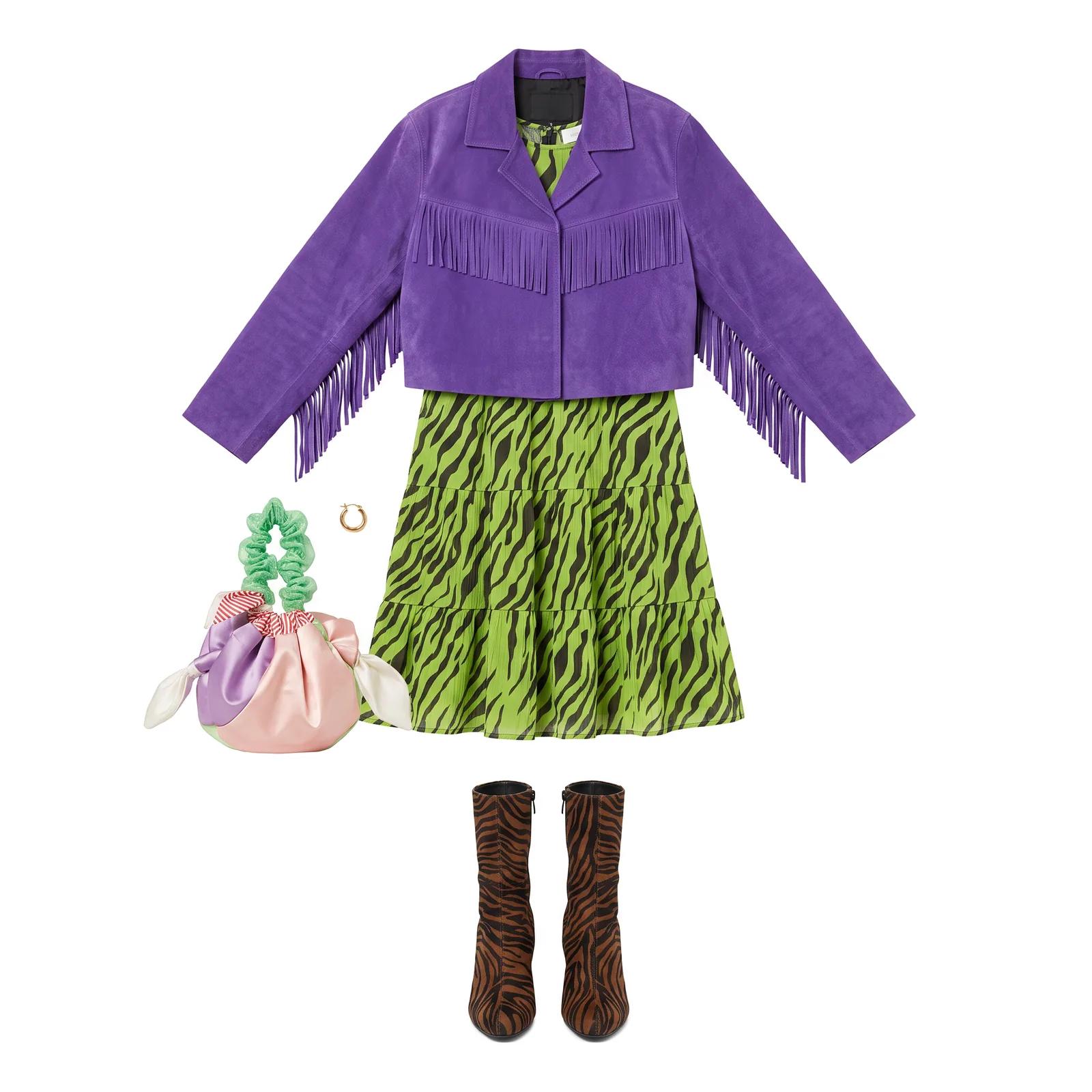
Output · Recognize Objects72 words
The list is neat, grouped the way a shop would group it, and easy to paste into a spreadsheet. It even spotted the small black label inside the jacket collar.
It also made one mistake. It lists a "Green scrunchie," but that's the bag's ruffled handle, so the list has one more item than the photo does. This mode is good at spotting what's there, and less reliable at telling where one object ends and the next begins.
If you're describing clothes in particular, the outfit describer goes further: each garment, its fabric, and the style they add up to.
Describe an outfit in detailDescribe any outfit — garments, fabrics, hair & the style it belongs toAnalyze Art Style: good at naming a look, not at how it was made
Found an image you love but can't put a name to its style? This mode helps, whether you're briefing a designer or searching for more images like it.
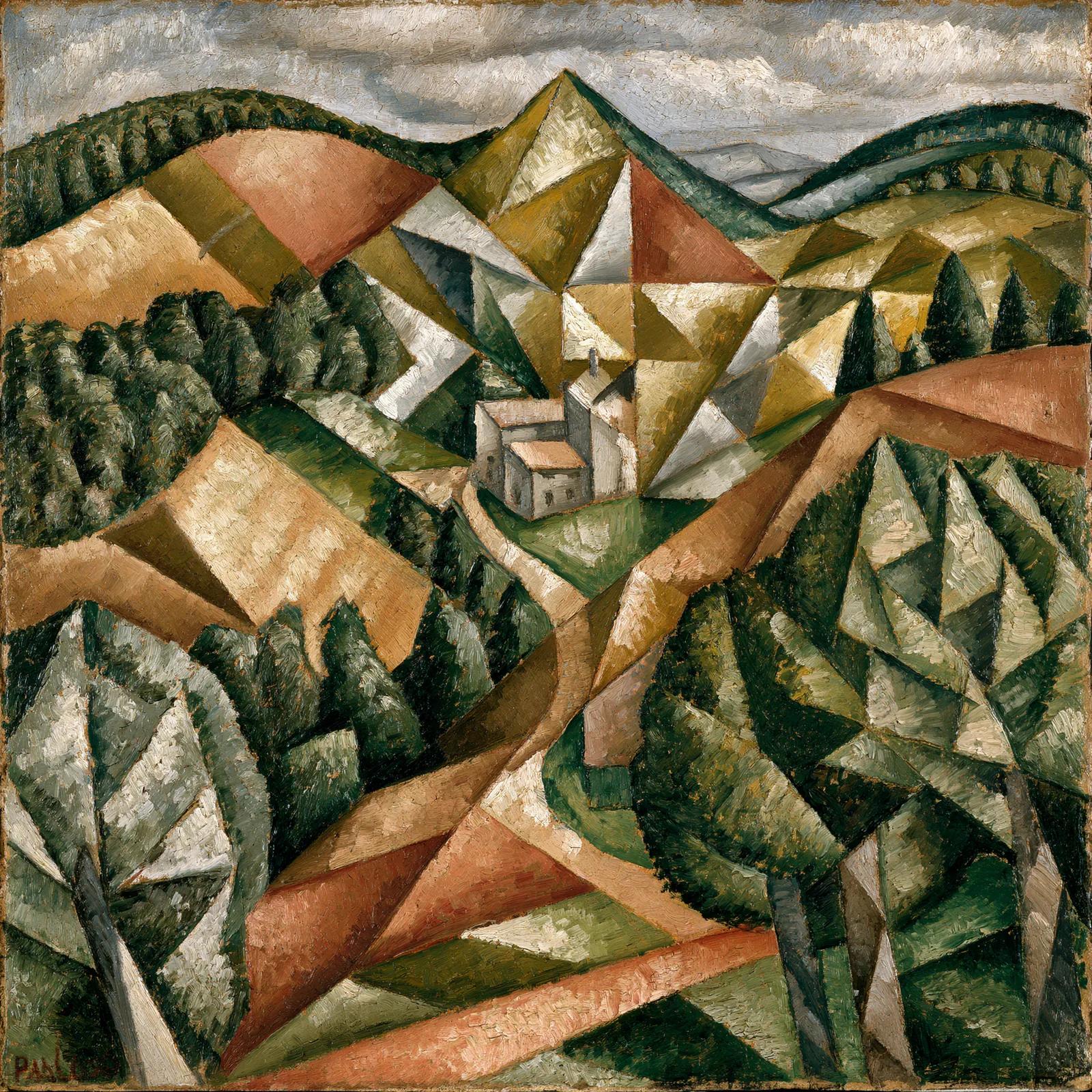
Output · Analyze Art Style228 words · first and last of four paragraphs, bold formatting removed
The useful part is the vocabulary. It recognized Cubism right away, mentioned Pablo Picasso and Georges Braque, and explained how the picture is broken up into flat, angular shapes. That's the language you need to describe a look to someone else.
Two parts are less reliable. It says the picture is an oil painting, "evident from the visible texture," but it's an AI image made to look painted. And it links the style to Orphism because of its "vibrant, faceted planes and a focus on color," then a paragraph later describes the palette as "earthy and subdued." Take anything it says about how a picture was made as a guess, and watch for answers that contradict themselves.
Extract Text: the words come out right, the notes about where don't
When you need the words from a sign, a screenshot or a poster, retyping them is slow and easy to get wrong. This mode copies them out for you.
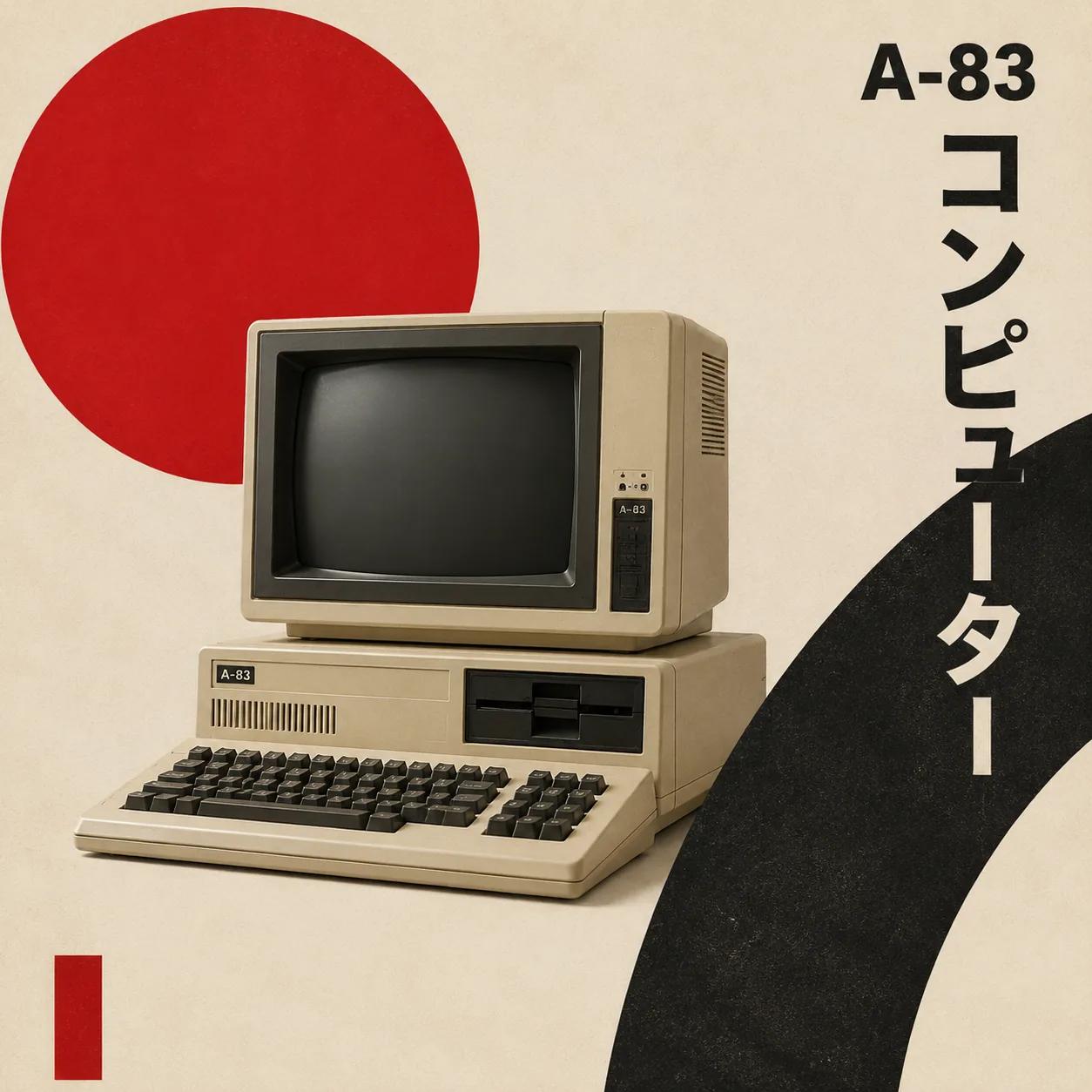
Output · Extract Text24 words
Every word came out exactly right: "A-83" all three times it appears, and コンピューター kept in Japanese, not translated. The only mistake is the last line, which lists a red rectangle that has no text in it.
Changing the output language works a little differently here. When we picked Spanish, the notes about where each piece of text sits came back in Spanish, but the Japanese stayed Japanese. That's what you want when you're copying text rather than translating it:
Output · Extract Textoutput language Spanish
This run also shows the mode's weak spot. It listed the label on the computer's base twice, and said the monitor's label is at the bottom left, which it isn't. The words are dependable. The notes about where they sit are not.
Two more things to know. If part of the text can't be read, it's marked [illegible], and an image with no text comes back as "No text detected in this image." And because images are shrunk to 1,024 pixels before the AI reads them, very small text can be missed. When we tested a website screenshot earlier, titles inside tiny thumbnails were skipped until we cropped the image down to that area.
Ask a Question: one fact at a time
Sometimes you don't need a description at all, just one answer: what a label says, or whether something is in the picture.
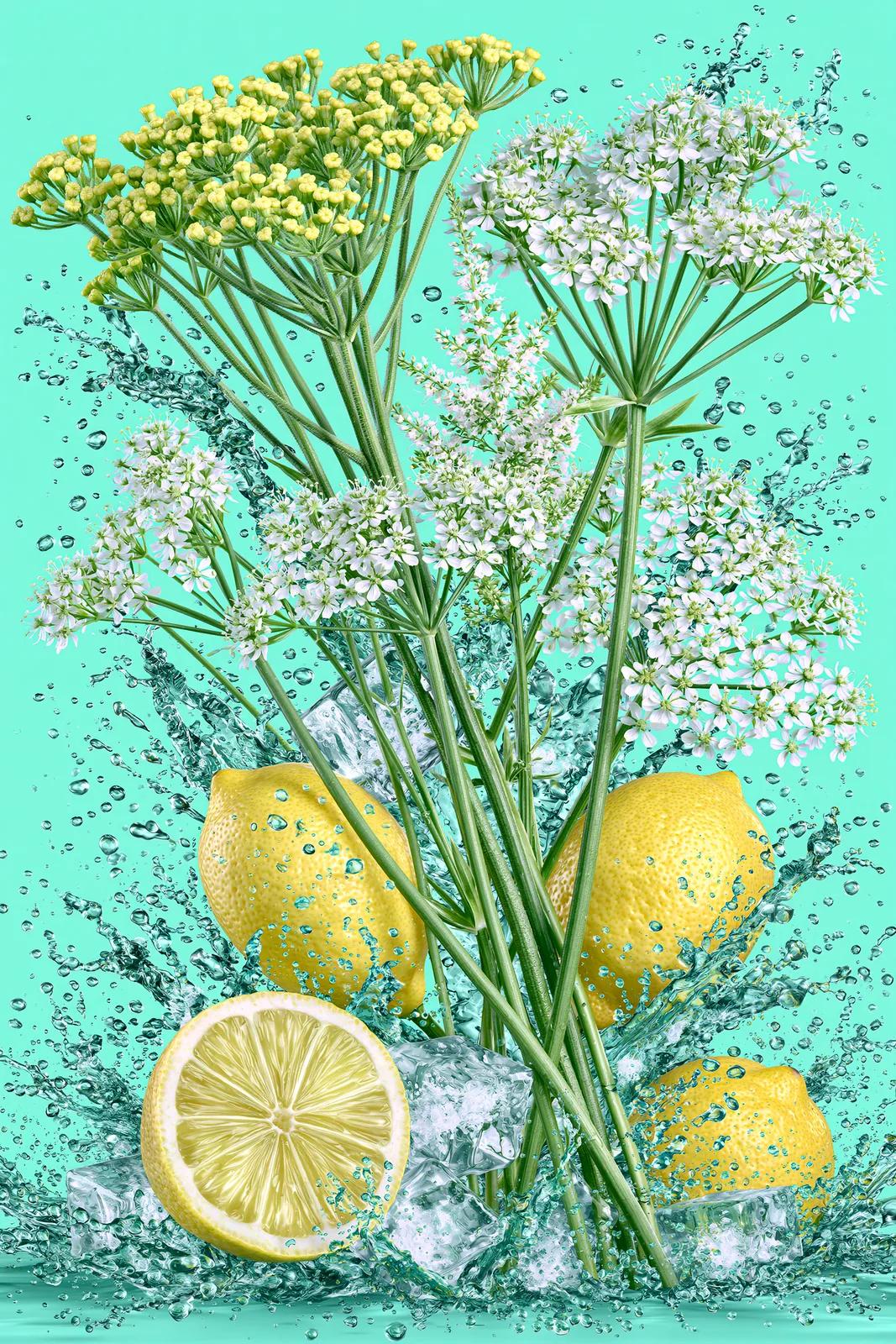
We asked two questions. The image could answer one of them, but not the other.
Output · Ask a QuestionHow many whole lemons are in this image, not counting any lemon that has been cut?
Correct: three whole lemons, plus one cut in half, which the question said to leave out.
Output · Ask a QuestionWhich country were these lemons grown in?
Also correct. Nothing in the picture shows where the lemons came from, so it says it can't tell and describes what it can see instead of making something up.
Be careful with counting, though. Three big lemons are easy. In an earlier test, on an image full of overlapping yellow circles, the same kind of question got the answer 10 when only two circles were fully visible.
My verdict
Use Ask a Question for single facts you can check with a quick look. Questions can be up to 300 characters long. If the answer is a count of lots of similar things, count them yourself.
Alt text: when you don't need the describer at all
Back to that batch of product photos. Before you create alt text for every image, it helps to know that some images shouldn't get a description at all.
Alt text comes from an accessibility rule, WCAG Success Criterion 1.1.1 (opens in a new tab): every image that matters needs a text version that does the same job as the image. What matters is the job, not the picture. The W3C's Images Tutorial (opens in a new tab) and its alt text decision tree (opens in a new tab) start from what an image is for, not what's in it. That tells you which mode to use, and sometimes that you don't need one:
| If the image is | The W3C's advice | What to do |
|---|---|---|
| Just decoration, or already explained by the text around it | Leave the alt text empty | Skip the describer and write alt="" |
| Text that isn't repeated anywhere else on the page | Put that text in the alt text | Use Extract Text, then check it |
| Inside a link or a button | Say where the link goes or what the button does | Write it yourself. Describing the picture is the wrong answer here |
| A photo or simple image that adds meaning | A short description that gets that meaning across | Use Describe Briefly, then trim it |
| A chart or a complex diagram | Put the information in the page text | Describe in Detail can draft that page text, but it doesn't belong in the alt text |
If you wanted a prompt, not a description
A description is written for people to read. If what you actually want is text you can give an AI image generator to recreate or remix a picture, that's a different job, and there's a different tool for it.
Turn an image into a prompt insteadTurn any image into an AI promptConclusion
Back to that batch of product photos due tomorrow. You don't have to write every description from scratch. Let the describer write the first draft, pick the mode that fits the job, and save your time for a quick read of each answer: look for guesses, items counted twice, and notes about where things sit.
Try the AI image describer on your own images. It's free, and you don't need an account.
Sources
The outside references this article relies on, so you can check them yourself.
5 references
- Gemini 2.5 Flash-LiteGoogle AI for Developers · Updated June 23, 2026
- Gemini deprecationsGoogle AI for Developers · Updated September 5, 2026
- Understanding Success Criterion 1.1.1: Non-text ContentW3C Web Accessibility Initiative · Updated August 10, 2026
- Images TutorialW3C Web Accessibility Initiative · Updated April 8, 2026
- An alt Decision TreeW3C Web Accessibility Initiative · Updated May 13, 2024